PaperClip on the Atari 8-Bit
Imagine an oven bakes gorgeous cakes, but gives random, severe burns. "When do the burns outweigh the beauty?" is posed by this cute word processor

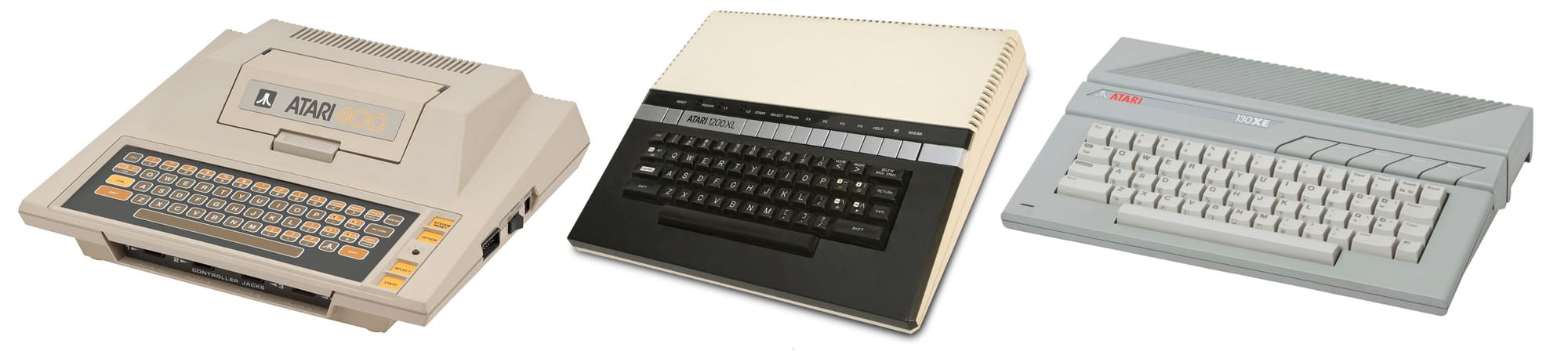
The Atari line of 8-bit computers has always been a bit of a chimera to me. Internals designed by Jay Miner, whose later work would form a foundational technology in my career path, with the Amiga's famous chipset; industrial design which never seemed to know quite how to position itself, moving me through phases of dry indifference and unquenchable technolust. Regardless, this line of systems has its own story to tell; one I have only recently begun to explore.
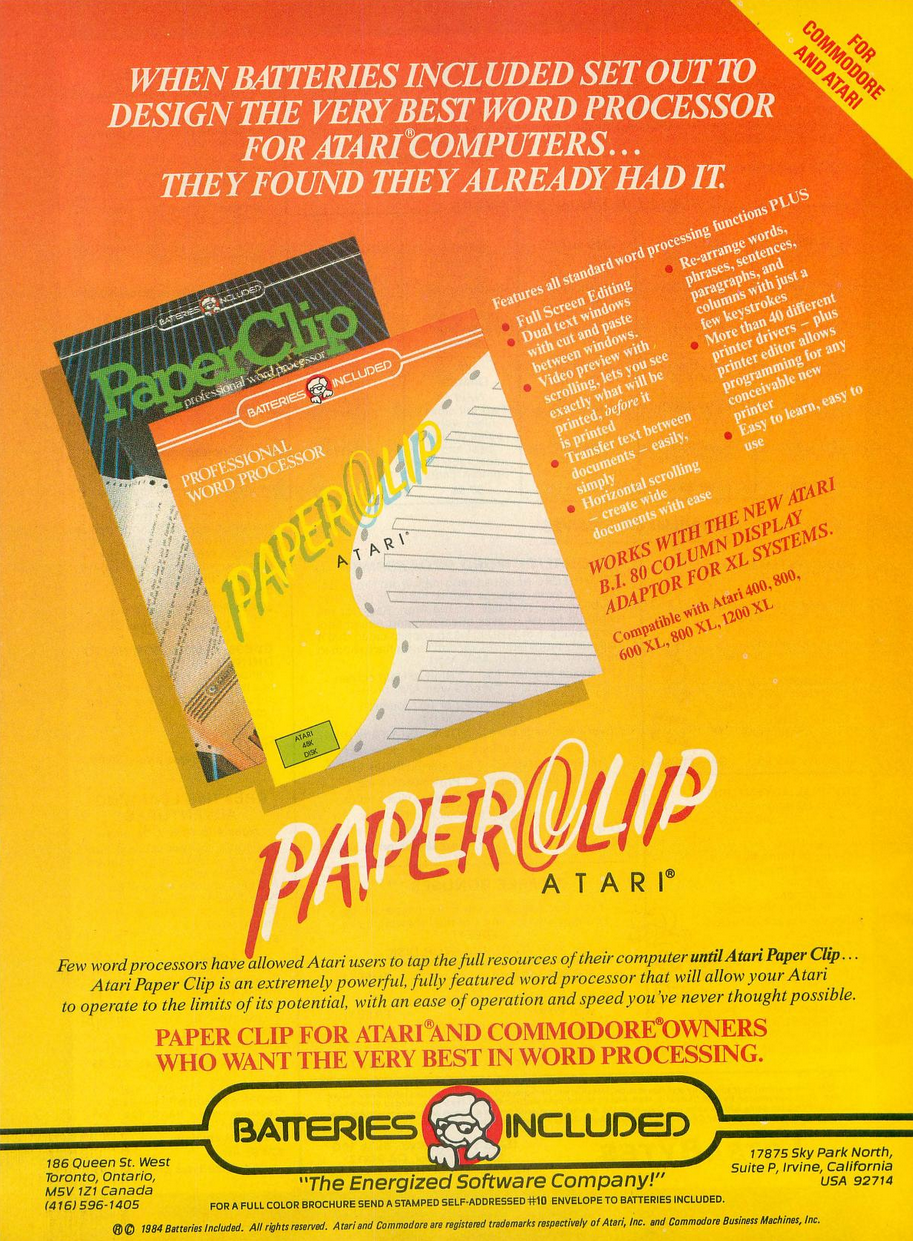
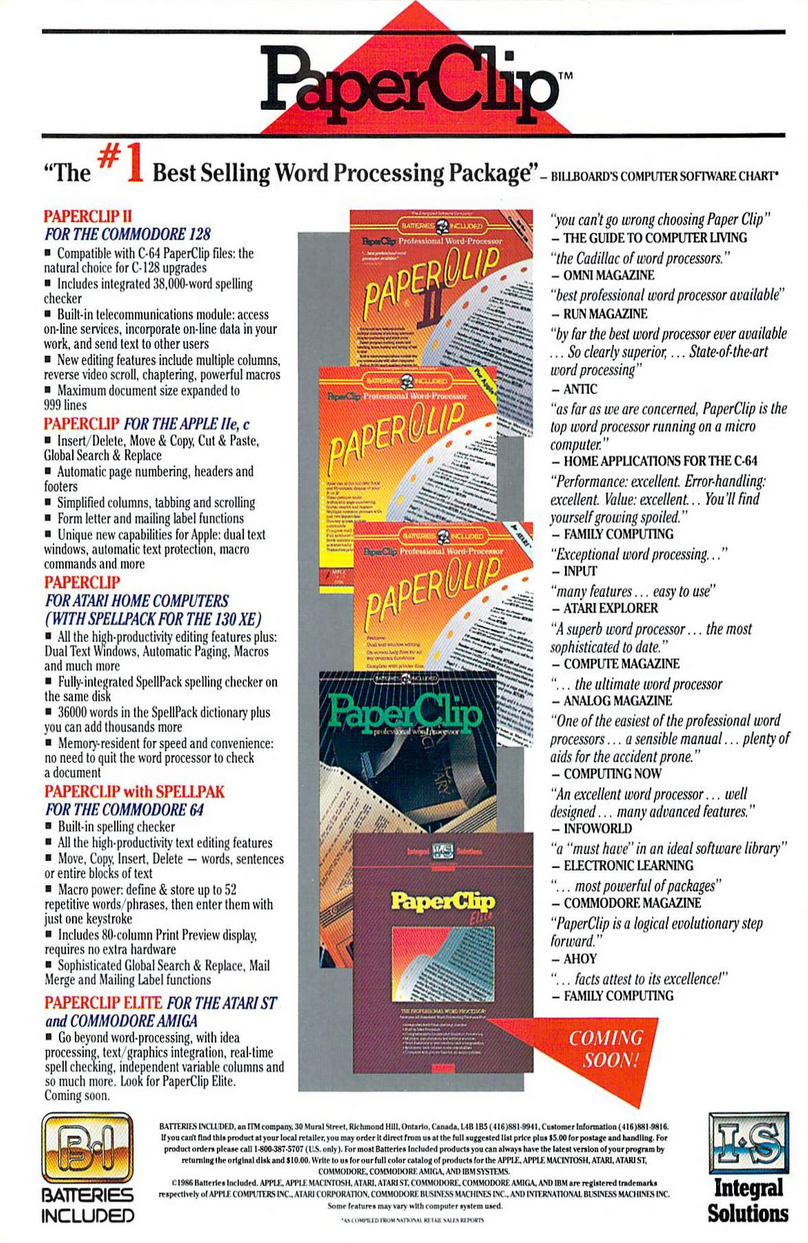
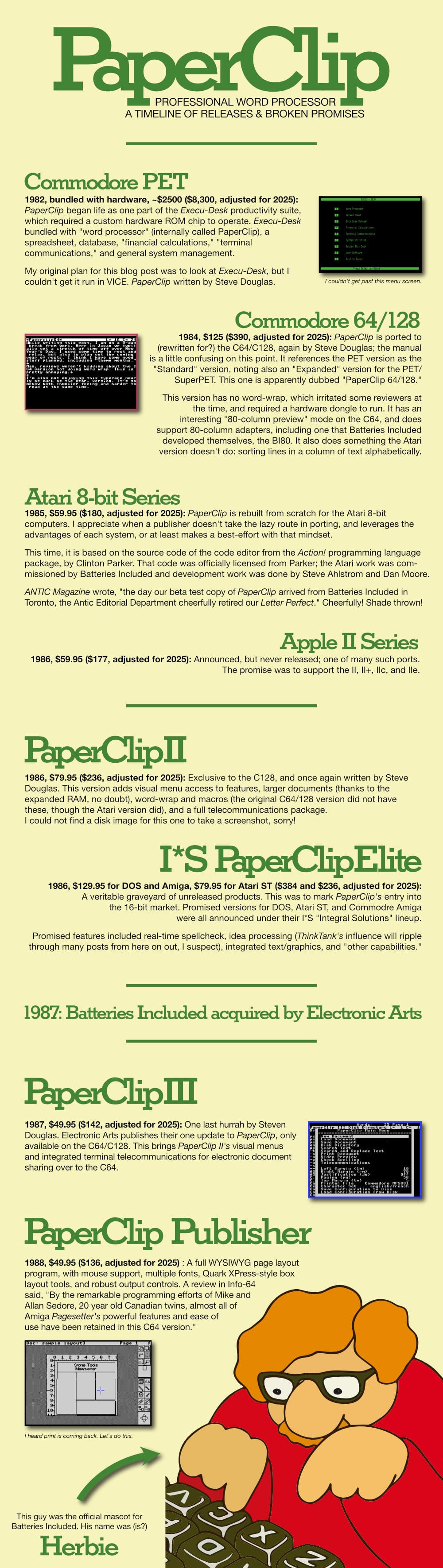
Starting life as a hardware ROM chip on the Commodore PET and ending life as just another brand name in Electronic Arts's mausoleum, PaperClip squeezed in a unique Atari version along its development life. Considered a triumph at the time, topping sales charts for over a year (across versions), PaperClip had considerable staying power.
ANTIC Magazine sold it in their "The Catalog," a kind of ANTIC-approved curated set of software, alongside CAD-3D. ANTIC went further still, using it on Atari hardware to produce their Atari magazine, sending stories to their photo-typesetting service by modem.
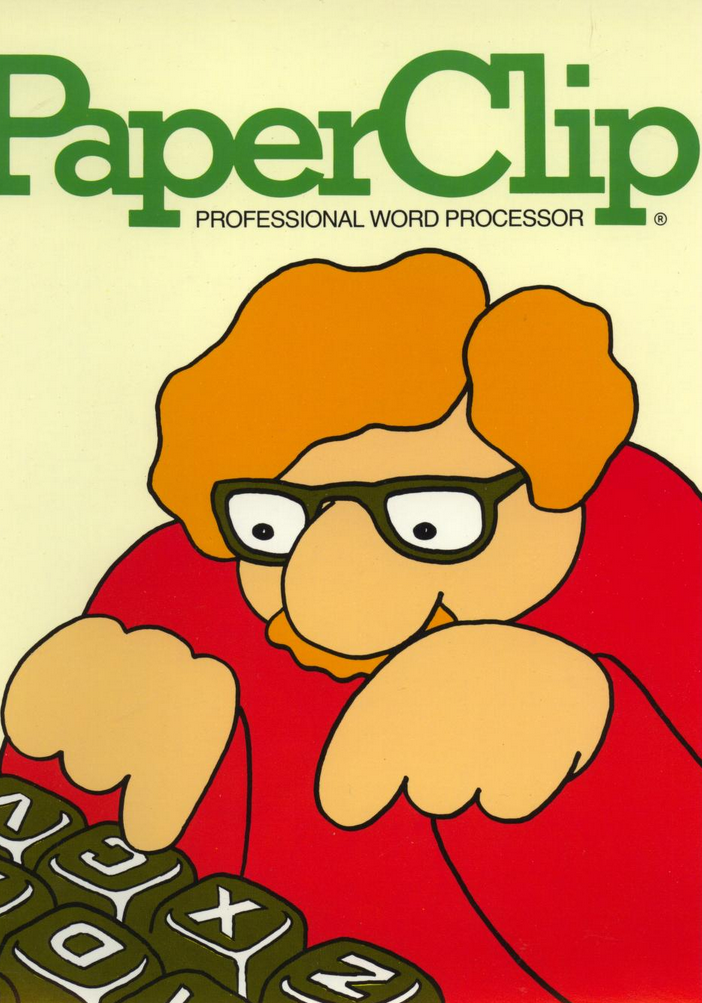
PaperClip looks friendly, has a cute little kickstand for its manual, was used to produce professional work, and it's on a system which, had a butterfly flapped its wings at just the right time might have been the Amiga's little brother. It's high time we got to know one another.
And let me state right upfront: there are no Clippy jokes nor references for this entire article. "No lazy jokes in 2026" is my New Year's resolution to you.
Historical Context
Testing Rig
- Altirra 4.3.1 on Windows 11
- 65XE/130XE in NTSC mode
- 320K Compy RAM expansion
- Screen effects turned on for bloom, slight screen curvature
- 1025 Printer emulation
- Speed at 100% typical XE, with Warp mode toggled during disk access
- PaperClip 2.0*
- I did eventually find 2.1 mid-way through the project.
Let's Get to Work
Hello and welcome to 2026. How was your holiday? Did you receive one of those new-fangled Commodore 64s? How about a shiny, new Intellivision? Perhaps Atari's latest hot 3D game, I Robot, was waiting in your wooden clogs?
Wait, what year is it again?

I had a pleasant holiday, and gave a lot of thought to my hopes and dreams for the new year. Of course, a big goal is to continue using and discussing the productivity software of yesteryear, both popular and obscure. In fact, I'm doing so right now, typing this very post into PaperClip on the Atari XE.
Warm pixels
With zero previous experience on Atari 8-bits going into this write-up, I have to say that first impressions of both the system and PaperClip are strong. Once booted, PaperClip's UX demands immediate conversation.
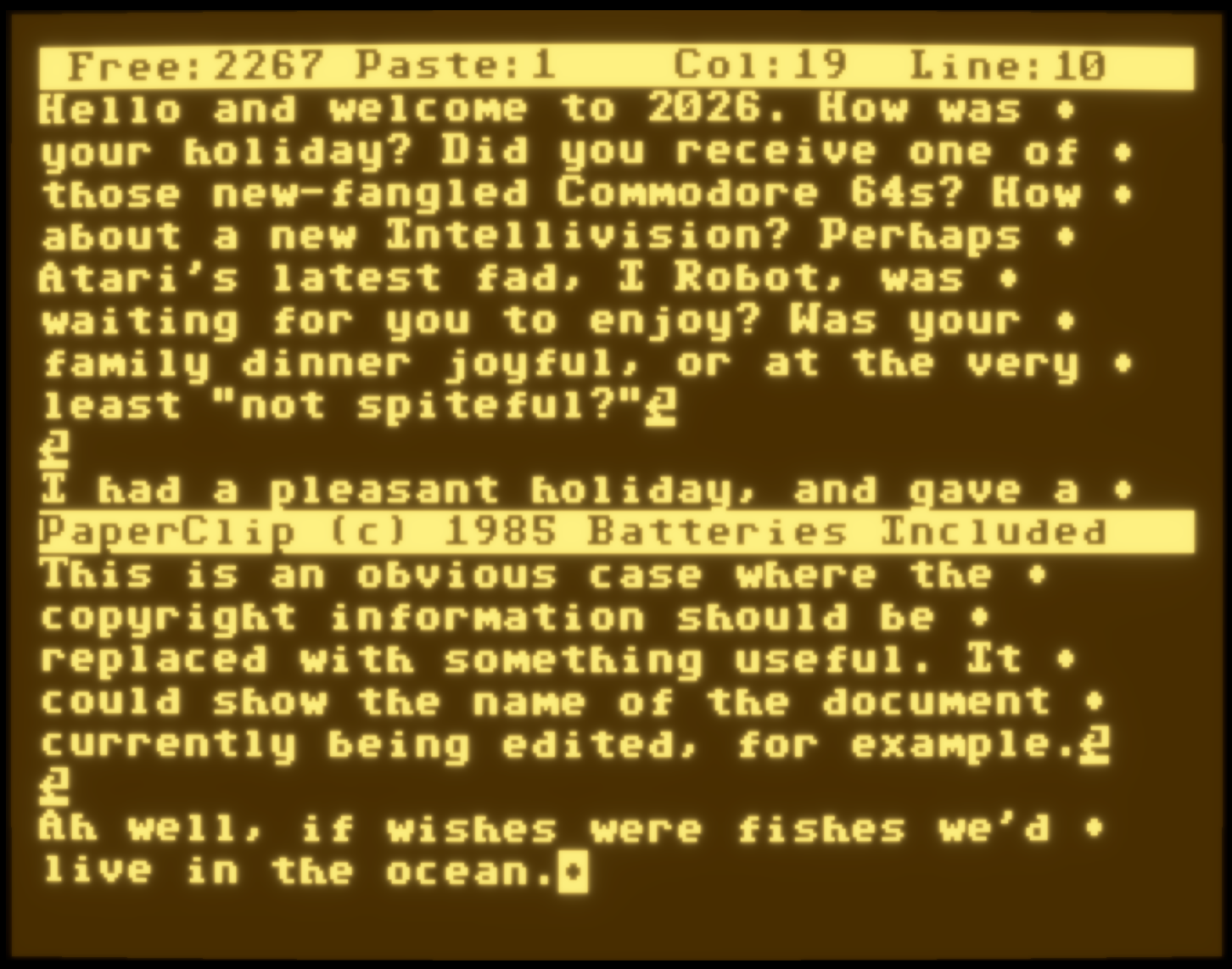
The top "Status Line" shows us, in inverse text, free memory in "lines of text," a "Paste" value (I'll talk about later), and cursor position, where "Col" shows the column on screen, and "Line" shows the line of the screen-formatted document. This concept of "lines" will be discussed later.
At the bottom is an ever-present "Command Line." When a keyboard command is issued, say to save the document, the bottom bar is where interfacing with the command occurs. I appreciate having a consistent spot for this, though my instinct says this area could have been put to better use. While typing, this area only shows program title and copyright information. Maybe common editing commands could have been shown instead?
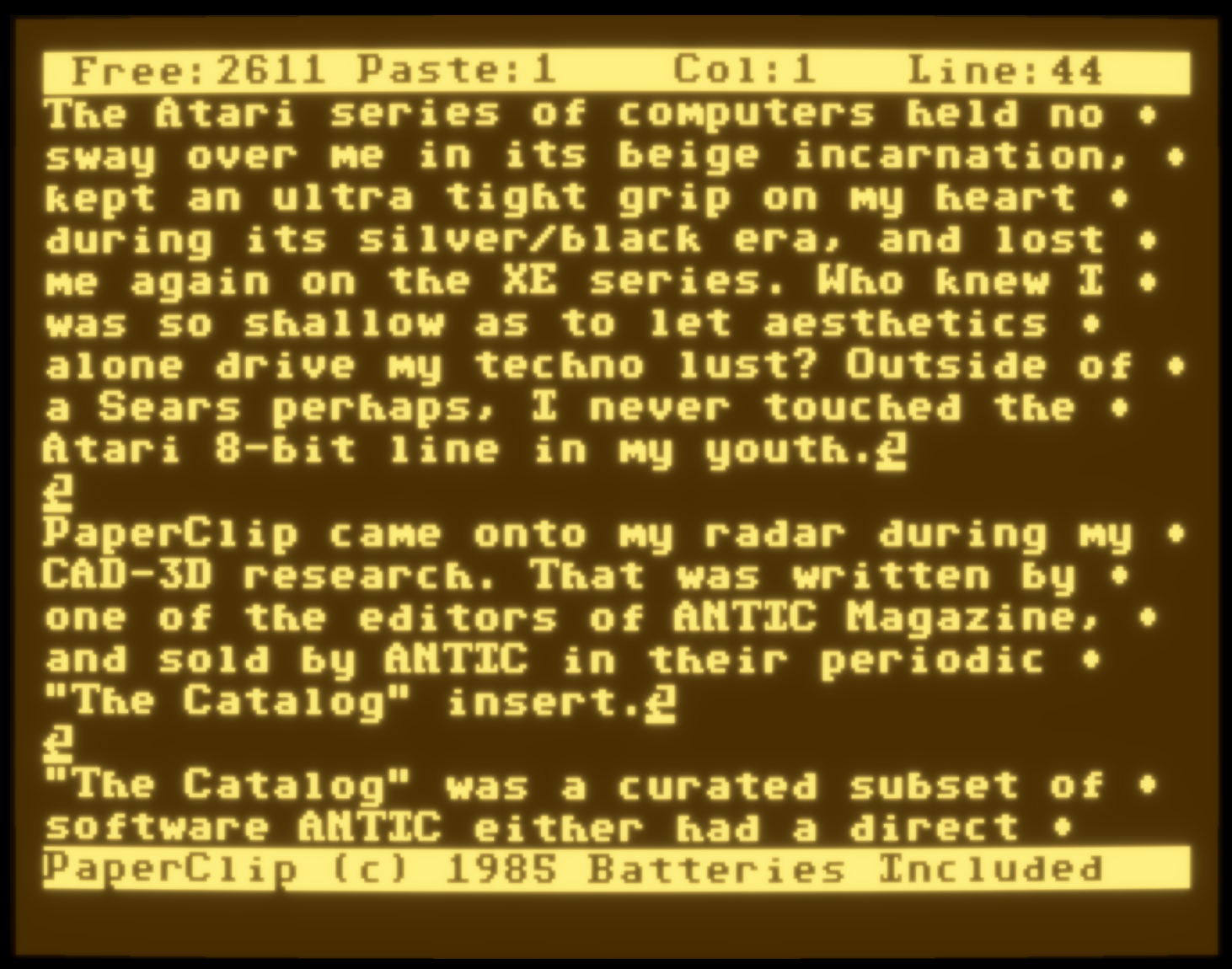
Chrome aside, the big standout is its font. PaperClip uses a custom-built typeface for everything. It's kind of chunky, displays 40-characters across and 20 lines (18 for text, 2 for UI chrome), has lower and upper case, ascenders and descenders, and serifs. Serifs are exceedingly rare in this kind of software, on 8-bit hardware of this era.
To quell the Atari nerds, I will note the program works in Antic hardware "Mode 3." This is a special text-only mode which requires a re-definition of every character you want to type. Nothing is pre-defined, so this can be used for anything, such as alternate languages, mathematical symbols, superscript and subscript, and the like.
While I have quibbles about the design of some of these letterforms, especially the funky capital "I", the font has a friendly, easy-on-the-eyes design. I'd even call it "opinionated," being that it evokes a specific sense of the program's mood. These are warm pixels, if that makes any sense.
L'il buddy
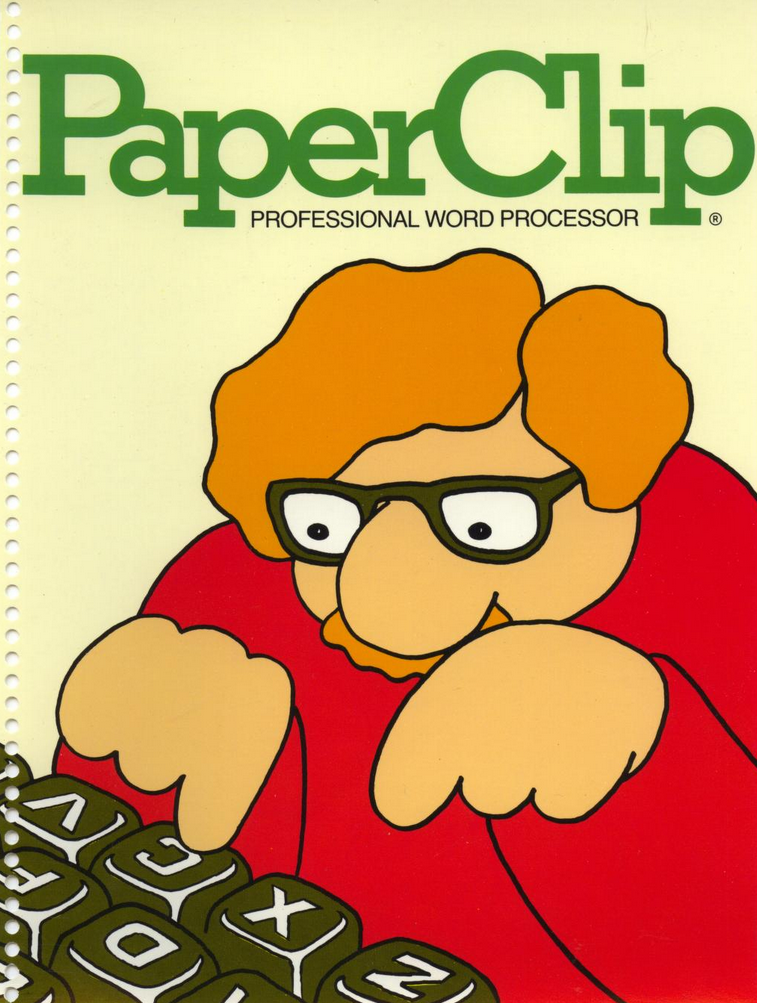
The warmness extends to the manual as well. I really like what they did with this, or at least did for a time before switching to a more traditional format. It is horizontal, spiral-bound along the top edge. Instructions show how to origami the packaging into a stand, upon which the manual sits.
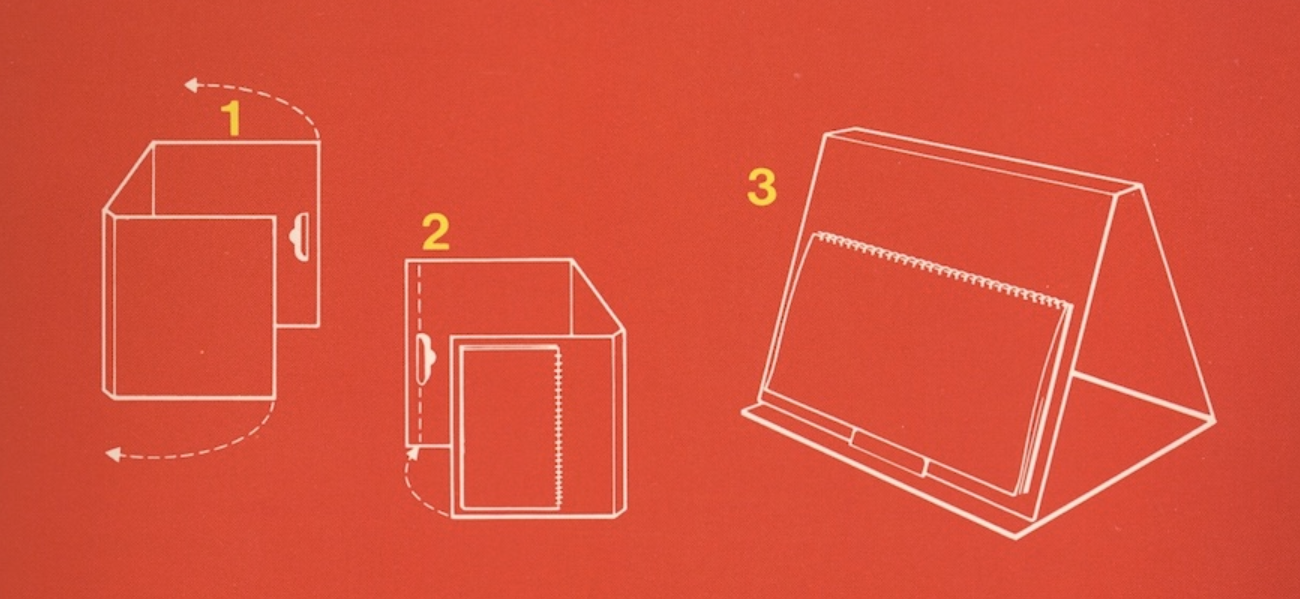
It's like a little companion buddy sitting next to you while you work, conceptually like the little dude on the box cover art. Supposedly! I don't have access to the real thing, I'm sorry to say, but the intent is evident and appreciated.
The tone of the manual is likewise friendly, stepping users of the day through the terminology needed to make sense of word processing as a concept. It's front-loaded with typical "it's like a typewriter but better" genre explanations, and generally does not assume the user knows anything about anything to do with computers. Generally.
Drop it like it's hot
Getting started with typing is as simple as you'd imagine and hope. The only non-obvious knowledge required before writing is how to save a document. PaperClip supports multiple disk drives, so throw a blank disk in, hit CTRL + SHIFT + W, name the file targeting the disk as D2:emo_poetry and you're good to go.
According to the manual "all editing commands in PaperClip are done with CTRL + SHIFT and then another key." The adherence to a common key combination to invoke commands is nice, but the mnemonics themselves aren't always immediately intuitive. To print we use "O." To save, we use "W" to "write" the file to disk. To get the word count we use "1". Knowing some makes other mnemonics self-evident. "Write" is complemented by "read", so "R" will load a saved file.
A few annoyances are cropping up, even at this early stage. PaperClip consistently drops letters while typing, requiring quite a bit of due-diligence on my part to backspace and make corrections as I notice them. I set Altirra's "keypress mode" to "baked" as it says this is best for productivity applications, thinking it must be related to my problem. Then I found a contemporary review that complained about the exact same thing on real hardware, so I guess that means I'm having an "authentic" experience. Hurray?
Every screen line of text ends with a little dot. According to the manual, this indicates "the end of the line" but when every line has a dot, that's effectively the same as not having a dot. There is a use case where this makes sense, as when line lengths are defined to be wider than the screen, but it still adds visual clutter I don't particularly enjoy. PaperClip III removed this, BTW.

There also seems to be a strange limit to where the cursor can sit. If I type up to column 37 the cursor stops moving to the right, but the line of text itself shifts left off-screen by a few characters to let me type up to column 40. This behavior must surely be imposed by the "Mode 3" calls? The net effect is that the text is always in motion, my cursor jerking about from line to line depending on whether the text wrap wants to shift or the line itself wants to slide over. I can mostly ignore it, but it's odd behavior.
Brother from another mother
Text enters in insert mode, not overtype, and can be switched on the fly. Word wrap happens immediately, no delay in calculating line length. ESC immediately cancels whatever command action you might be in the middle of configuring. The entire program is snappy and performant.
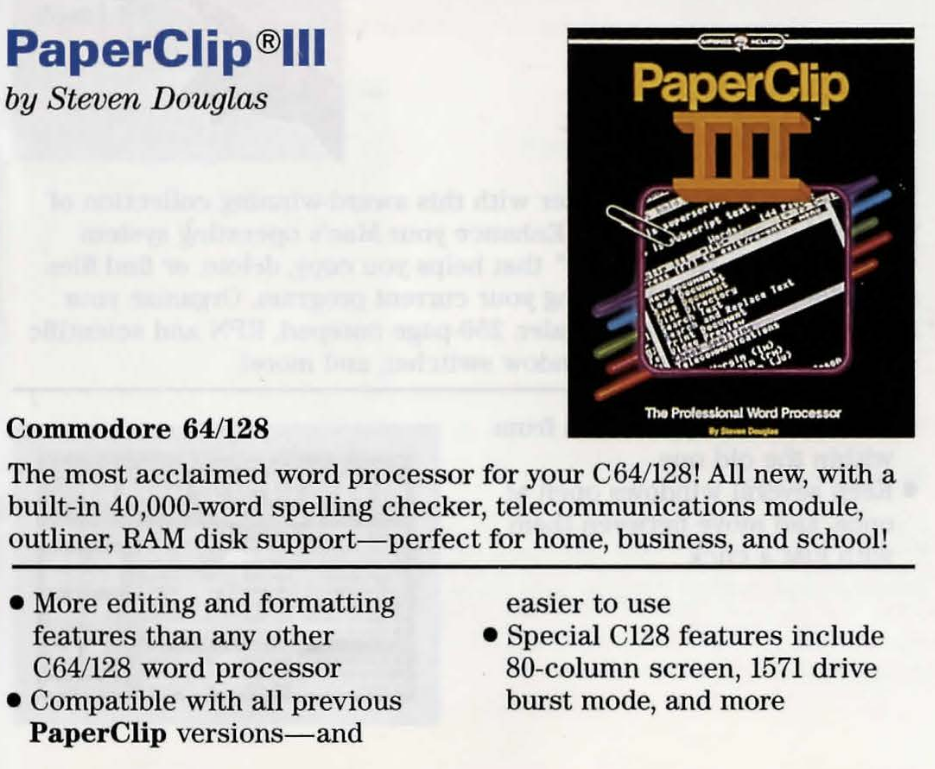
PaperClip was released for the Commodore PET as one component of their Execudesk software suite. The developer of that, Steve Douglas, then created a version for the Commodore 64.
PaperClip on the Atari was a complete machine language rewrite which shared only the name and perhaps general guidance on feature requirements. According to developer Steve Ahlstrom, Batteries Included wanted a version which took advantage of the strengths of its host system.
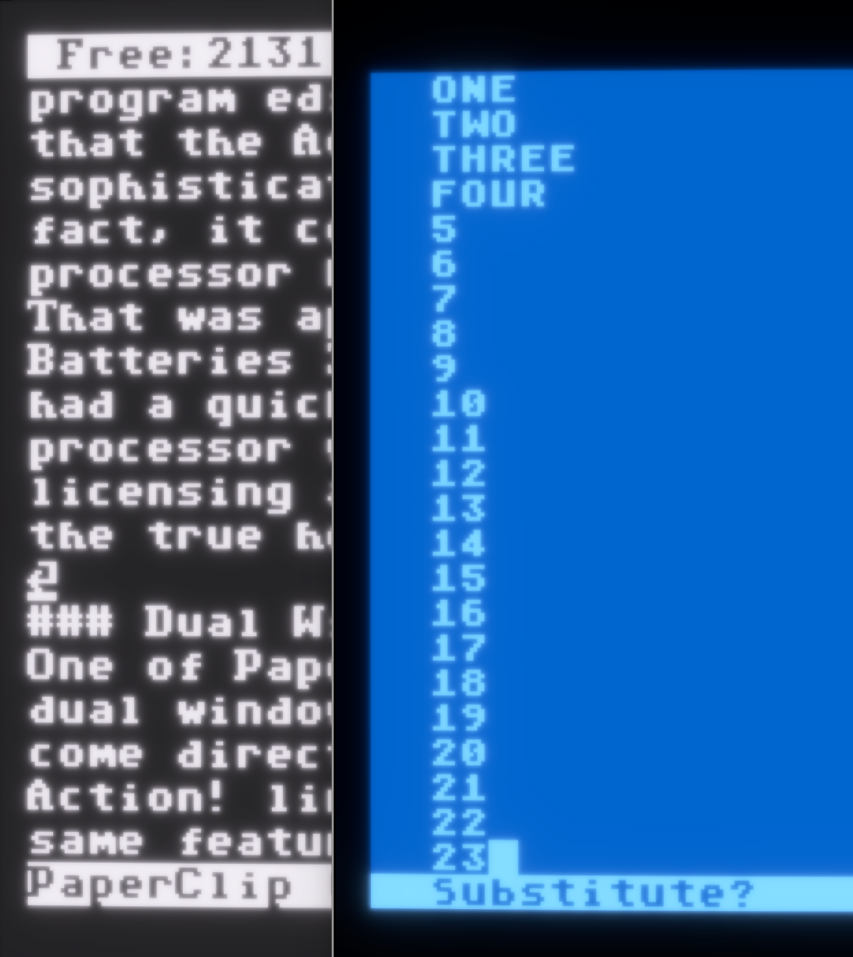
The basis for the Atari version was literally the line editor from the popular Action! programming language. The Action! manual says of its own line editor, "If you have used a program editor before, you will notice that the Action! Editor is far more sophisticated than most others: in fact, it could almost be called a word processor because it does so much."
That was apparently taken to heart by Batteries Included in thinking they had a quick path to a great word processor with a couple of simple licensing agreements, including the PaperClip brand. The lawyers were the true heroes all along?!
Pour a 40 for the 80
You know what is surprisingly not bothering me at all?: 40-column mode. I thought I would be driven to madness, but actually it is quite the opposite. I find it focuses me on the important thing: the words.
If I had to do a lot of printing in the 80s, 40 columns would be a problem. I am a very visual person and I like things to be "just so," as close to WYSIWYG as possible. As a blogger in 2026, all I need is the text; the blogging platform handles the rest. PaperClip handles Markdown almost perfectly; there is no backtick in the custom font, but that's not a deal-breaker. I've done more with less.
Dual Wielding
One of PaperClip's nicest features is dual window editing. This seems to come directly from its roots as the Action! line editor, in which this can also be found.
SELECT (a key unique to the Atari keyboard) will open text window 2, into which an entirely different document may be started or loaded. SELECT will then toggle between the two text windows, making it easy to jot notes in one, and commit to the main corpus in the other, for example.
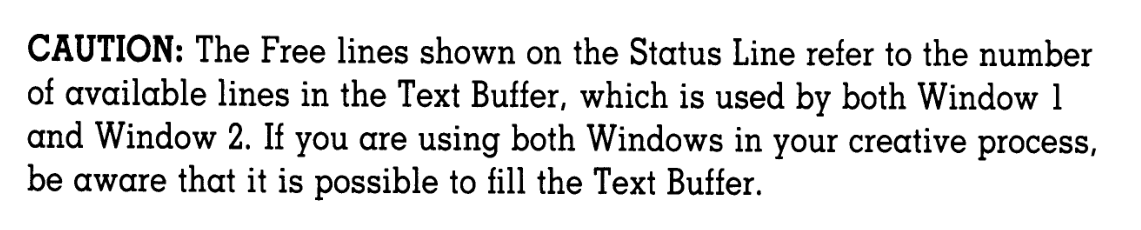
Remember though that both windows share the same "Free" memory, so there are hard limits to this magnanimous gift. However, they also share the same "Paste" buffer, making it a snap to copy/paste between documents. Each window can load a different document, but two views into the same document is not possible. That's a little odd, because the line editor from Action! does support that. To be fair you can load the same document twice, but the two copies are independent of one another. Changes in one window are not reflected in the other.
Line dancing
What is a "line" of text? It depends on who you ask, I suppose. If we ask the screen, it would be "about 40 characters." If I ask my printer, it will depend on my printer and may be as few as 20 characters, as in the case of the 4.5" wide paper on an Atari 1020 plotter. 80 characters is the typical promised land for letter-sized or A4 paper, as when printing on the Atari 1029 dot matrix printer.
I may also decide on an arbitrary width of my choosing, and PaperClip allows me to set this for myself. The EDIT menu is invoked by the OPTION key, then E, which steps me through a list of application settings. Cursor behavior, top window height, left inset margin, screen colors, and line length are user-settable.
I wanted to see what my 40-column width document would look like in 20-columns.
Doing so wiped my document from memory, with no warning, no prompt, thanks for nothing, there's the door. I just lost five paragraphs of work.
That led me to turn ON one of the other settings: auto-save. We can set to auto-save after a given number of characters, which I've put at 300 now because I'm paranoid AF. A "bell" sound warns when it's about to auto-save, then it writes everything to a temp file on the drive of choice. I had hoped it would overwrite my actual document, but at least my work is safe.
The point I want to make about lines returns to the "Free" and "Paste" counters in the top status bar. Those are counting "lines" as defined by the above-mentioned EDIT menu settings. Set line length to 20 and the Free value doubles from the default 40 calculation. Set it to 80 and get half the number of Free lines. The Paste value is similarly the number of "lines" held in the paste buffer.
This is all to say that I'm never really clear how much more I can write. I just don't think in terms of arbitrary "lines" like this. Lines x characters per line = Total Characters. Just show me remaining characters, please.
Likewise, paste should tell me how many characters are in the buffer; that would be a far more useful metric for knowing where I stand. Why won't you do this for me, Herbie? I thought we were friends, Herbie?!
You must be this nerdy to ride
Sometimes programmers get a little tunnel-visioned in how they approach solutions to user problems. Consider this passage from the manual discussing how to set the column for the left margin inset. Values can be 0, 1, or 2. The manual says, "Computers count strangely. Their first number is 0, while we humans are used to starting with 1."
Now, correct me if I'm wrong, but this program was written for humans to use. And, correct me if I'm wrong, but it is relatively trivial to subtract 1 from a number in machine language, right? So why this weird lesson about 0-based numbering? The developer could allow "human" numbering while quietly shifting the value into "computer" numbering behind the scenes.
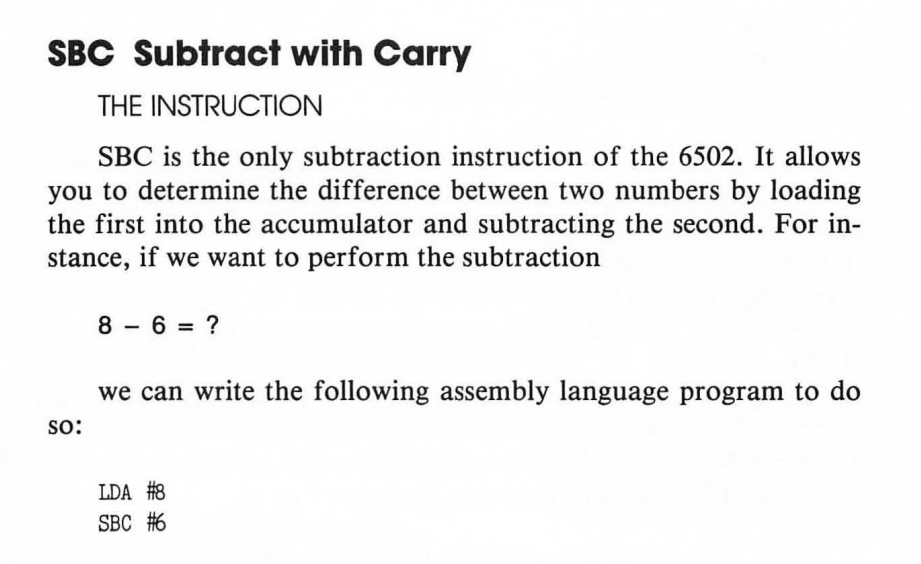
I always feel weird when manuals reference "inside baseball" terminology for no good reason. It adds that little bit of cognitive load to the learning process, and more distressingly it presents extra-nerdy gatekeeping to the software. A word processor should not require a writer to learn about zero-based numbering.
The more I research software, the more this barrier becomes obvious to me and I start to see it everywhere. It begs the question, "Were computers ever user friendly?" How many people were put off by a constant barrage of these small, subtle context shifts? A computer should match the human frame of reference, not vice versa.
PaperClip... Herbie... don't worry, it's not your fault; I still enjoy your company!
So far. (ominous_string_instruments.wav)
Benedict Cumberbatch

Editing in PaperClip has many of the tools you'd expect in a modern word processor, or at least close facsimiles. Specifically, we get full cut/copy/paste, through CTRL + SHIFT + M to Mark a block of text, which can be cut or copied, and CTRL + SHIFT + P will Paste it down, keeping it in the Paste buffer for further pasting if you like. As stated earlier, this works across documents in split screen mode.
Cursor control happens as you'd hope, via arrow keys and keyboard modifiers for faster navigation between words, lines, and pages. While the bog standard tools are unsurprising, PaperClip has more than a few interesting takes on typical word processor functionality.
CTRL + SHIFT + 3 or 4 will perform letter and word swap respectively. Position the cursor on a letter or word and insta-transpose it with the letter or word immediately to the left of the current scope.
CTRL + SHIFT + F will do a find and replace, from where the cursor is positioned; no backward searching here. The twist is in its scope.
One of PaperClip's most interesting ideas is "batch" files and the manipulation of multiple files at once. By associating files as a batch, find and replace can do its job through all files in the batch. We don't have to open each one up individually ourselves; the computer does the heavy lifting for us. Dance, monkey, dance!
Modern text editors, like Visual Studio Code, allow for find and replace amongst all files in a project. I suspected that given PaperClip's origins as a code editor in Action! this batch processing magic must have been inherited from there, but no! It's unique to PaperClip. I'm not aware of any other word processor, including modern ones, that do this.
The price of tags
The next trick does in fact come from its roots in Action!. Tags are named bookmarks for fast navigation through a document. Tag names can only be one character, but can be any character. CTRL + SHIFT + T sets a tag by id, and G will Go to a tag id.
But, beware, the program continues its pattern of adding just a pinch of evil to great features. "Tags are not saved as part of your text when you write your text to a disk file. Tags are lost if you do any editing on the line containing them."
Fun while it lasted.
Justified and ancient
Normally I wouldn't discuss much about printer-related features, but PaperClip's options are robust, and Altirra provides dot matrix printer emulation, so we have an opportunity for a little fun here. There are some interesting options available, keeping in mind that PaperClip is not WYSIWYG, but rather more like WYGIWYHFC (what you get is what you hope, fingers crossed)
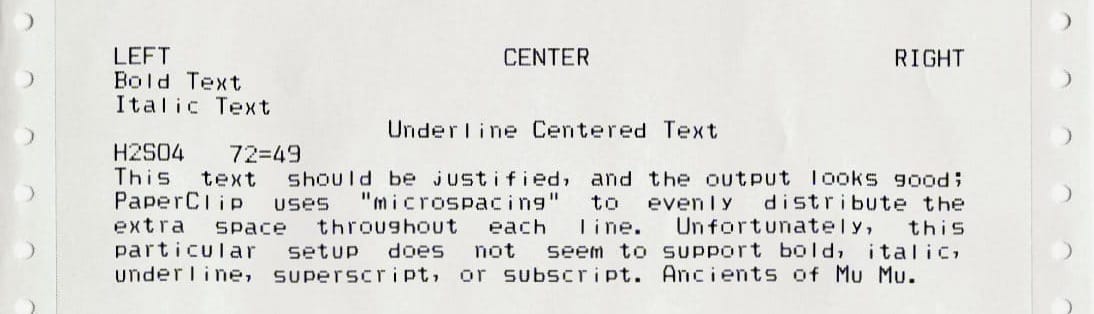
Bold, italic, underline, left/center/right alignment, super/subscripting, and full justification are available. Even if the screen doesn't show it to you live, the options for your output are plentiful. The on-screen representation can be visually tough to decipher at times.
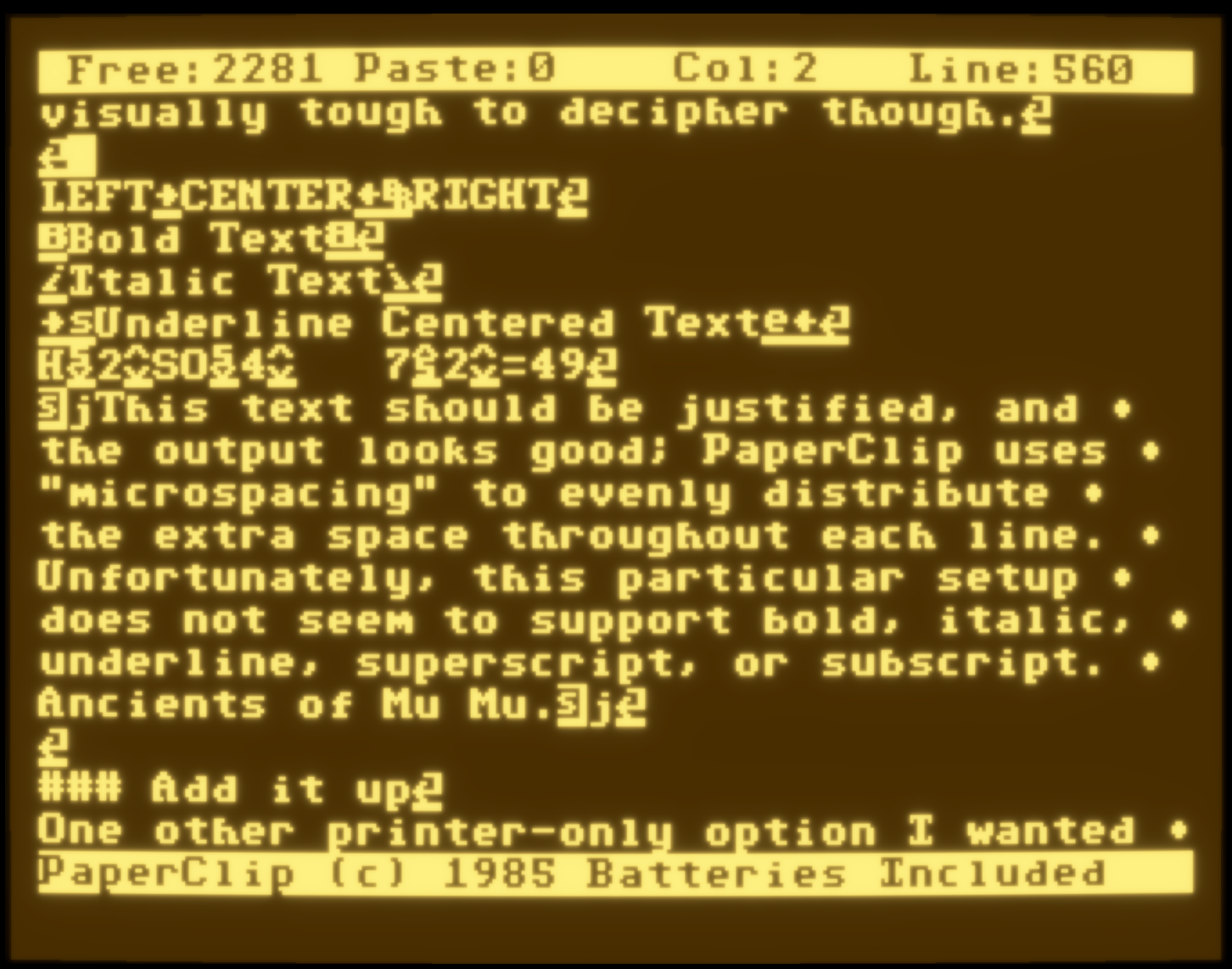
The above, printed on the emulated printer, produces the below.
Add it up
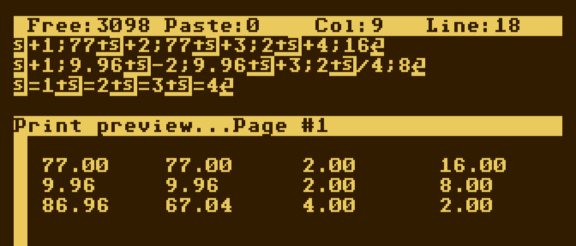
One other printer-only option I wanted to note is that PaperClip can do math.

That doesn't look like much. Again, like other functions, this interesting utility has its own tradeoff. We'll only get the math to math when we print the document.

There's a lot of things printing can do that can't be immediately seen. Print Preview can render these options, though it lacks the Commodore 64's faux-80-column preview mode.
(note: I just lost a couple of hours of work again, this time due to Altirra's VRW disk mode. See notes at the end.)
Tabular data with automatic columnar calculations, auto-build a table of contents, dual column layout, mail merge, headers, footers and more are all possible using embedded printer codes. One other non-printing option that is pretty useful, especially for group editing: comments.
CTRL + Z (then period) will hide text from that character up to the next carriage return. Pretty useful, especially considering tags don't save with the document. Maybe use comments and Find by keyword instead?
Macro polo
Getting words onto screen is nice, but a word processor should endeavor to make life easier for the writer. PaperClip takes a stab at this through macros. This sounds like a decidedly programmery feature, and surely must be inherited from the Action! line editor. But no! Again, this feature is unique to PaperClip.
Now, between you and me I don't see a whole lot of value in this particular implementation. It is simply, "type a bunch of text with a shortcut." I prefer Bank Street Writer+, as its macros can do anything the user can do with the keyboard, which includes issuing editing commands.
When would I use this? I suppose I could embed my street address into a macro? Maybe there is some ridiculously long word that I need to type repeatedly? I can imagine back in the day using it to inject complex printer command codes with a stroke. Otherwise, this is another PaperClip feature that elicits an extra "sigh."
Ah, but the sighs get heavier and more plentiful, just you wait.
Macros can be stored in separate files to load up specific shortcuts for specific needs. Sounds useful, but here's another "sigh" moment. No, scratch that, this goes beyond. See if you can spot it in the video below as I load in a macro set.
Did you see that madness?!
My entire document, dumped without warning, just to load a macro file. All the manual says is, "Enter the name of your Macro File. PaperClip will read the file into the Macro Buffer and the Macros are now ready for your use." That statement is true only in the most pedantic way, "You never asked if I'd also delete your work, so don't hold me accountable for your lack of inquisitiveness."
Dumping unsaved work unceremoniously is a major strike against PaperClip. It's not just this time either. More than once, seemingly innocuous features did wholesale resets of the input buffer. I've lost work multiple times, which is particularly frustrating because I enjoy the PaperClip writing experience.
At any rate, after repairing my lost text, here's the macro at work.
Spell check will definitely not catch that typo.
The Book of Webster
One of the tricks about this kind of archaeology is it isn't always obvious which manual goes with which version of the software. It seems I've been using a 1.x manual, which hid a 2.0 special feature, a memory-resident spellcheck. I just needed to know the prescribed rite (and find the dictionary file) to invoke it.
CTRL + SHIFT + 6 brings up a menu of spellcheck options, including a simple audit of unknown words. Some modern words are unknown, of course, but some omissions are inexplicable.
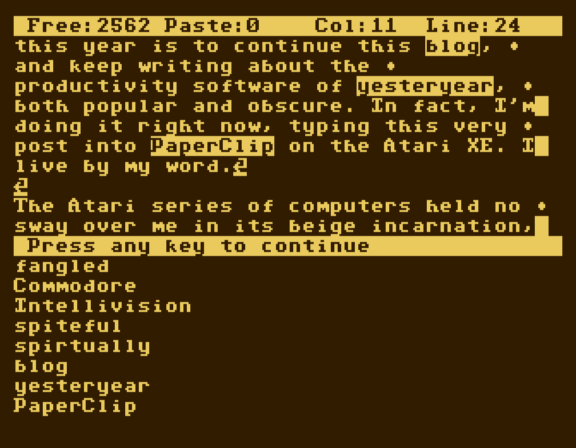
PaperClip will step through all unknown words, giving us a chance to accept as-is, retype it, or teach PaperClip about its existence for the future. But that isn't enough, of course; there is always one extra gotcha with PaperClip. Once you've told PaperClip to learn a word, you must then save the learned words out to a supplemental dictionary, and explicitly reload that as a separate action when you want to use it later; it cannot be appended to the default dictionary.
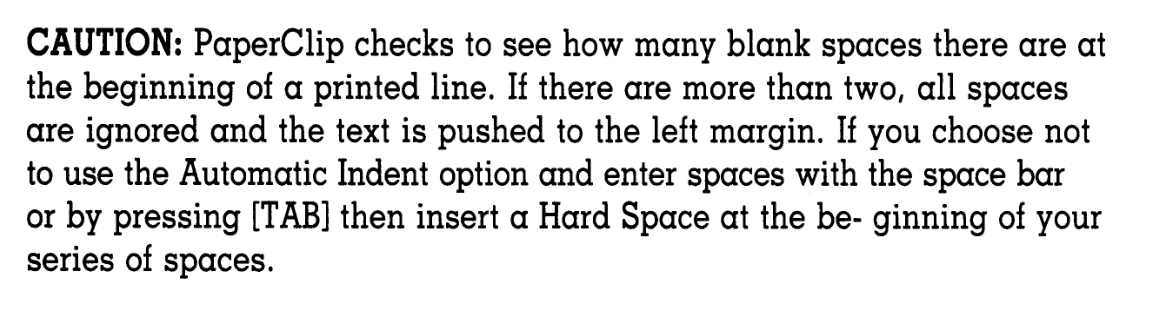
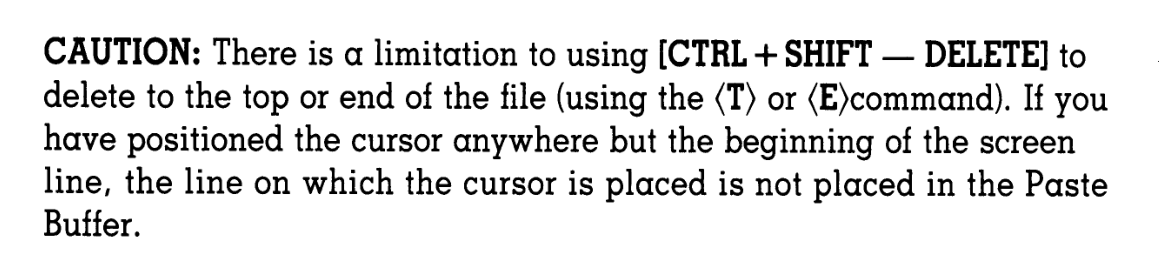
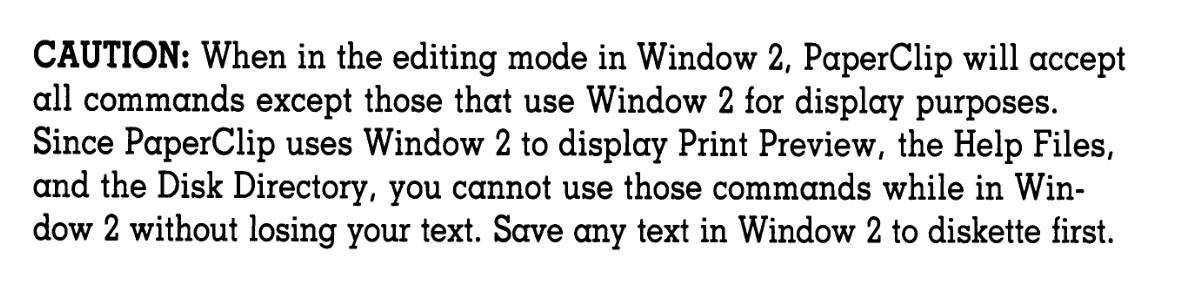
Flipping through this v2.1 manual, hunting for other hidden goodies, I see they added some notes that would have been uniquely helpful to me days earlier. I'm reminded of the wisdom of the computer elders, "If a bug art found too late, a caution ye may state. If eleven art reveal'd, thy code must yet be heal'd."







The early stage of late-stage capitalism
The first software I looked at for this blog was Deluxe Paint, by Electronic Arts. I noted that, hard as it is to believe now, there was a time when EA was cool.
These days, boy they sure do have a poor reputation, absorbing other companies and digesting them for whatever scant nutrients remain in the marrow, don't they? Since 1987 they've taken in about 40 companies, including big names like PopCap Games, Codemasters, Respawn Entertainment, Maxis, and Bullfrog.
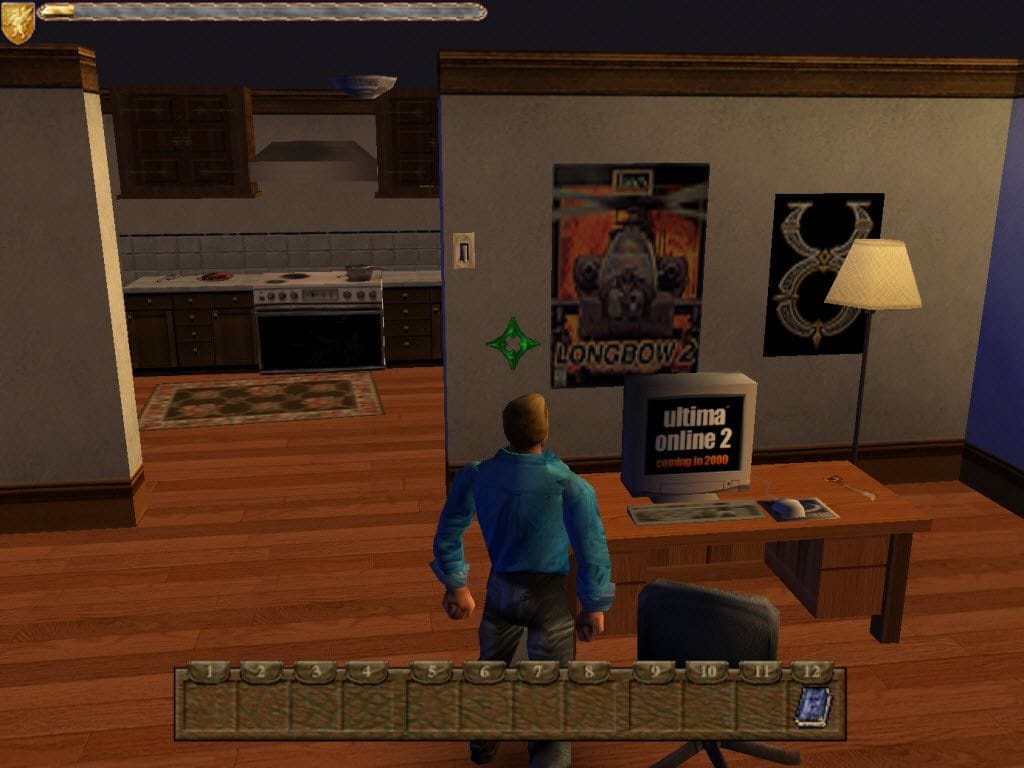
An early glimpse at how EA would manage their acquisitions was with Origin. The maker of Ultima was quite infamously pushed to get Ultimas 8 and 9 out the door before either was fully cooked, with 9 in particular being a borderline unplayable mess. EA kept the Origin brand on artificial respiration, notably to maintain Ultima Online for a few years. In 2004, Origin was removed from its iron lung and allowed the dignity of death.
If only there had been some warning, some indicator of how EA would handle acquisitions. Gosh, if only.
Hard habit to break
EA Founder and CEO, Trip Hawkins, seems to have made two acquisitions during his tenure. First, in 1984, he picked up Organic Software, acquiring developer Mike Posehn's Get Organized, "the first personal information manager" (claims Posehn).
Even that early in EA's history, they were seen primarily as a game company. Infoworld said at the time, "Electronic Arts' reputation as a designer of games for the Apple computer may be a roadblock (to success in the productivity market)."
Posehn said of Get Organized, "GO was a cool product but was ahead of its time. After lackluster sales...EA dropped the product." Posehn was later encouraged by Trip to do a little game called Desert Strike.
Whatever productivity dream Trip had when purchasing Organic Software apparently didn't die. A second opportunity to kick-start a new market for EA's growth was right around the corner, and Trip would take it.
Connective tissue
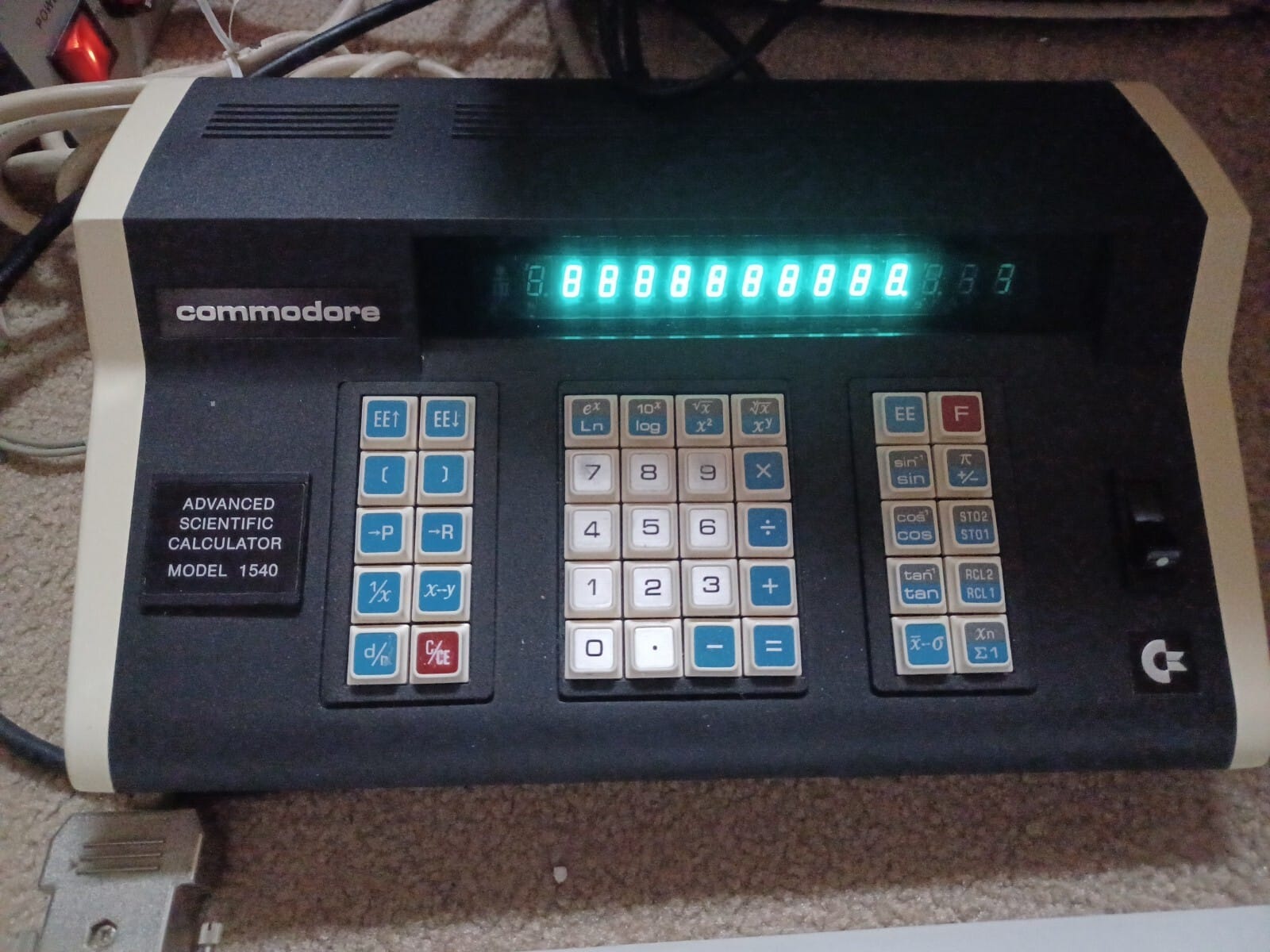
Founded in 1978, Batteries Included began life as a distributor of Commodore calculators and watches. They did actually include batteries free with every purchase; the company name was a direct reference to that business practice. User-friendliness was in their hearts from day one. In 1985, ROM Magazine dubbed Batteries Included "Canada's Atari."
The Toronto based software and hardware company was probably best known for PaperClip and DEGAS, a painting program for the Atari ST. DEGAS was written by Tom Hudson, the developer of CAD-3D, which I covered a few months ago. Man, everything is connected, ain't it?
By 1985, PaperClip had sold "in the hundred thousand range." Director of Product Development, Michael Reichmann, said of Batteries Included's future, "Fast growth is always a problem, and we face it." In 1986 there was a lot of public talk and concrete promises about PaperClip expanding onto new platforms.
B.I. essentially had only a bare minimum engineering staff. Rather, development was outsourced to contract programmers who received royalties on sales. B.I. put those developers to work on an Apple II version of PaperClip as well as PaperClip Elite, a 16-bit maturation of the product for DOS, Amiga, and the Atari ST. Elite was to include light desktop publishing features and "idea processing."
Time keeps on slippin'
Reichmann was promoted to president of Batteries Included around the end of 1985, and promised the ST software under the "Integrated Software" line for 1986. TPUG magazine, August 1986, noted that the IS line had slipped shipping date to "late summer" of '86. (Remember in print publishing, an "August" issue would hit newsstands in July, which means the story was probably written in May/June.)
Perhaps the luster had worn off. Perhaps Reichmann felt the draw toward other endeavors (he would go on to be a prolific digital photographer and blogger on the subject). Whatever the case, Reichmann left Batteries Included in 1987, before any of the expanded PaperClip line had shipped.
Ian Chadwick said of the event, "With (Reichmann) went a lot of the drive and determination that kept B.I. going. The remaining management was indecisive and insecure. We marched towards the inevitable: the sale of the company."
In 1987, having grown to over 60 employees, Batteries Included went into receivership, and was purchased by Electronic Arts.
This put the software developers, who again were not employees of B.I., in a lurch. They were not informed of the troubles B.I. found itself in, and were quite literally left holding their software bag. They had code, but nobody to publish it. Deal-making shenanigans kept them in the dark too long, and by the time the lights came on, their code no longer held the relevance or cachet necessary to get it published.
Chadwick recounted the story of developer Scott Northmore who was deep in development of B.I.'s Consultant Elite for the ST. "Scott had brought Consultant Elite to the beta test stage, but what now? EA held the rights to all products, even those in development, and were slow to release them— even those they had no intention to publish. Scott finally got the rights for his program back in December— nine months or so after the sale. For nine months he couldn't legally do anything with Consultant. All that work didn't generate any income."
Breaking into old markets
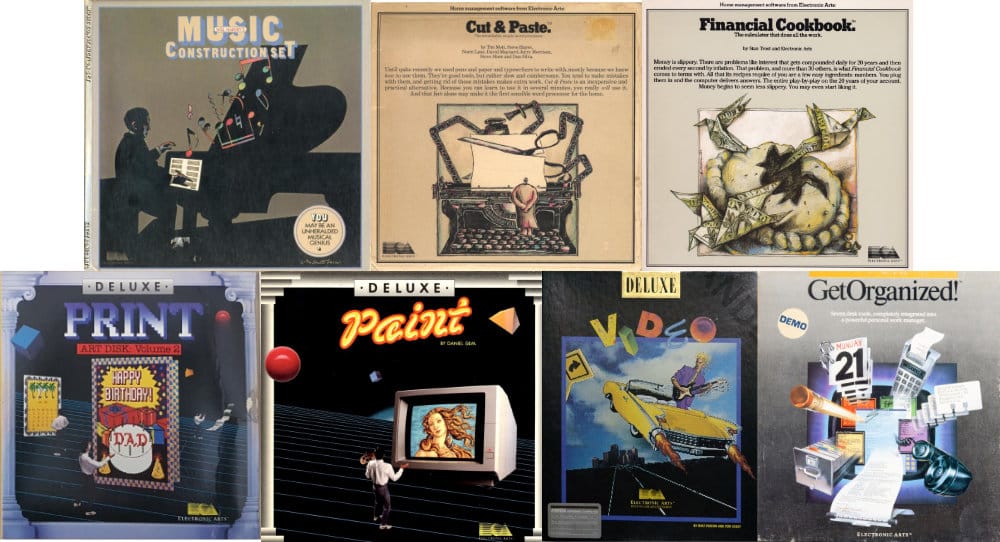
While EA had certainly done a lot to progress digital creative workflows, success in general home productivity never really arrived. Music Construction Set apparently sold over a million units, and Deluxe Paint remains legendary. Other software titles made rumbles, but weren't earthshaking.
Before Deluxe Paint, Dan Silva got together with Tim Mott and 0thers to take "ideas from Xerox Parc" and use that knowledge (especially Mott's experience there) to build a "user friendly" word processor, Cut & Paste. "Cute, but feeble," said The Whole Earth Software Catalog.
I cannot claim to know what was in the hearts and minds of the principles of Electronic Arts at the time, but we do know what happened and when. While Trip Hawkins was running the show, he greenlit a number of productivity applications. and acquired two productivity software companies. I believe it is safe to say he envisioned EA as more than just a game company and PaperClip in particular was singled out as the title to keep the Batteries Included brand alive.
Have a nice Trip
In 1987, EA released PaperClip III under the "Batteries Included" banner, squeezing a little juice out of the title and brand name. It was well received, though it came with a little twist of the knife, as PaperClip seems to have a habit of doing. In focusing their efforts exclusively on the C64/128, all other platforms were abandoned. The product announcements for various platforms just a year prior were officially dissolved.
In 1988, EA pushed to get desktop publishing onto the C64 with PaperClip Publisher. It had nothing to do with PaperClip nor Batteries Included in their original incarnations. It was not a product B.I. had been working on that EA acquired. Rather, it was a newly commissioned port of a pre-existing product, sold in a box which happened to have a B.I. logo at the top.
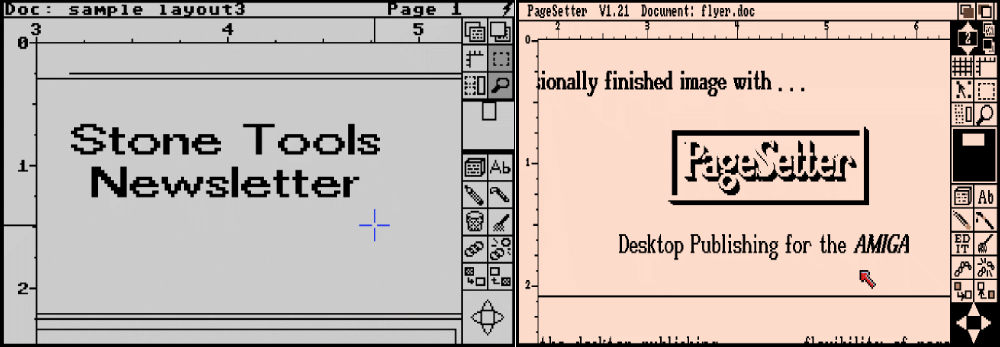
After Publisher was, well, nothing. That was the beginning and end of both products and the Batteries Included brand. No further updates were published for either program. According to a post by Deluxe Paint co-developer Dallas Hodgson, "By the time the first EA Sports titles hit the shelves, it was pretty clear that the company wasn't interested in PC applications anymore, and killed off the entire Tools (formerly Creativity) division." Deluxe Music 2 and Deluxe Paint V were the final releases in that lineup.
Trip left EA to found 3DO in 1991, and Larry Probst took the reigns.
Probst went on to snatch up some 25 companies, Origin being one of the first. What happened with Origin perhaps shouldn't have been too much of a surprise, hindsight being what it is. In a sense, the heads of Organic Software and Batteries Included were already on pikes at the moat when Origin was brought inside the gates.
Given the timeline of events, and the marketing push behind the PaperClip Elite line, I can't shake the feeling that buried in the vaults of EA lie near-complete versions of PaperClip for the Apple II, DOS, Amiga, and the Atari ST in particular.
Who's with me for an Ocean's Eleven style adventure this year?
Love hurts
Let me preface my conclusion by saying I like PaperClip, quite a lot. It is easy on the eyes, and just plain nice to use. It's quick, responsive, has a robust set of core features plus some bonuses, and is overall trying its best to be my friend. I like it.
I like it, but.
Too many features have hard-to-swallow negative side effects, and I live in constant fear that I might "try something" and lose 30 minutes of work. Sometimes people fall in love with "dangerous" characters, and I kinda sorta get it, in my own retro nerd way. Using PaperClip feels so good, I want it be an on-going relationship. I tried the C64 version, and it felt off; the Atari version is superior, in my estimation.
But PaperClip, Herbie, buddy, you burned me a couple of times too many to make me love you. It wasn't always your fault, but the net effect is the same. In 1985, I would have adjusted and changed to meet you. Here in 2026, I must say goodbye.
You'll remain in my heart, but not on my hard drive.
Sharpening the Stone
Ways to improve the experience, notable deficiencies, workarounds, and notes about incorporating the software into modern workflows (if possible).
Emulator Improvements
- You must, must, must set Altirra's default disk access from
VRWtoRWor you will lose your work when you least expect it.
Emulators sometimes have this strange notion of saving to disk virtually, and must be manually told to write the virtual changes to the actual host file system. I had been saving constantly, with the disk in "VRW" mode which dutifully "saved to disk," but only in pantomime. After a hard reset of the emulator to test something I lost a large chunk of work.
I don't understand the thinking behind this virtual file saving. When would I ever want to pretend to save? TRS80GP emulator did the same thing and that also bit me more than once. I think that whenVRWis turned off it stays off, but now I'm super paranoid. - 320K Compy is enough RAM for the emulator. The "Rambo" memory type, even at the same 320K, doesn't provide as much free ram as the "Compy" option. Likewise, choosing values over 320K, hoping to game the system to write Cryptonomicon 2, seems to max out at the 320K Compy limit.
- I personally recommend using the "Screen Effects" for this one. With a little screen curvature, bloom, and subtle scanline intensity, I found the presentation matched well with the delightful font. It made PaperClip feel cozy.
- Turn on "auto-save" and set it to a low character limit. At worst, you'll basically get a prompt every
xtyped characters reminding you to save. At best, you'll have rotating temp files providing snapshots of the work in progress. The temp files are shared by all documents, so don't rely on them as your sole source of truth for any given document. It's there to help you in a pinch, that's all. - Emulators for other systems
- macOS has "Atari800MacX" which released v6.1.2 at the start of 2026.
- Linux has "Atari800" last updated at the end of 2023.
Troubleshooting
- Work was lost multiple times while writing this article. Those are discussed in the article and above, in the note about the emulator. The lesson learned? It is impossible to save "too often."
- I did not encounter any crashes of the application nor the emulator itself.
Getting Your Data into the Real World
- Altirra has built-in support for this. Under
Tools > Disk Exploreropen the disk image which contains your document. A list of files on disk is presented. Right-click on the file to export andExport file as TXTdoes the trick.
What's Lacking?
- The main feature I found myself desiring is more on-screen visualization of formatting options. Maybe I naively thought that with the font being a custom font, bold, italic, superscript, etc could be displayed. The fact we have to print to see the effects is a bit of a drag and limits the usefulness of those features for a modern audience. It's overly printer-centric in its design philosophy.
Fossil Record